 Ejecta
How to Find What Process Is Using a Drive on Mac
Use free Mac tools to inspect open files, identify a possible drive holder, and retry a normal eject. Learn what lsof can and cannot prove.
Start by saving your work and letting copies, exports, sync jobs and backups finish. Then try ejecting the drive in Finder. If macOS still says it is in use, an open-file list can help identify a process to investigate. It cannot certify that unplugging or force ejecting is safe.
You can do this with tools already on your Mac. Ejecta adds a menu-bar view of detected drive holders and actions for supported apps; it is optional.
Find the volume and inspect open files
In Finder, select the external drive and check its name. Mounted volumes normally appear under /Volumes. Open Terminal and list them:
ls /Volumes
Inspect a specific volume, replacing the example with its exact name and keeping the quotes:
lsof -nP "/Volumes/Your Drive"
lsof lists open files. Giving it the mounted volume path selects open files on that filesystem. The command reads information; it does not quit processes or eject the drive. If access restrictions prevent useful results, you can repeat it with sudo before lsof. That asks for your Mac administrator password in Terminal, not on this website, and does not guarantee complete visibility. No output is not proof that the volume is idle or safe to disconnect.
Look at COMMAND, PID and NAME. A row linking an app’s PID to a file on your volume gives you a specific lead. Several processes can have files open at once, and the process that appears in a list is not necessarily the only reason an eject failed.
The FD access marker is easy to overinterpret. r means the file was opened for reading, w for writing and u for both. Those flags describe how the file was opened. They do not measure whether a write is happening now, or whether another process is writing elsewhere on the volume.
Check the app before quitting it
Use the PID and process name to find the app in Activity Monitor. Its Disk tab can show changing read/write totals, but those totals cover the process across volumes. They are not a safety verdict for your external drive.
If it is an app you recognize, finish its work, save documents, close files on the drive and quit it normally. Close Finder preview windows too. In Terminal windows whose current directory is on the drive, run cd ~ to leave it. Then retry Finder’s eject. Apple recommends quitting apps using the disk before retrying. If it is Time Machine, follow the backup-specific steps. For indexing, sync or a process you do not recognize, wait or investigate its own controls. Do not kill system processes just because their names appear in lsof.
If a normal eject keeps failing, a normal Mac shutdown can be a safer fallback. Wait for the Mac to shut down before disconnecting the drive. Force eject has different risks.
An original Mac test: a read-only file blocked unmount
On October 1, 2026, we tested macOS 27.0.1 (26A434) on Apple Silicon using a disposable HFS+ disk image named EjectaGuideTest, with expendable files only. A Python process kept sample.txt open for reading. We inspected just that test process:
/usr/sbin/lsof -a -p 17868 -Fpcfan /Volumes/EjectaGuideTest
The recorded result included:
p17868
cPython
f3
ar
n/Volumes/EjectaGuideTest/sample.txt
A normal diskutil unmount /Volumes/EjectaGuideTest failed and named PID 17868 as the dissenter. After closing only our test process, the same normal unmount succeeded. This shows that a read-only open file can block a normal unmount. It does not establish that force eject would preserve every file, or predict behavior on APFS, network drives or an active backup.
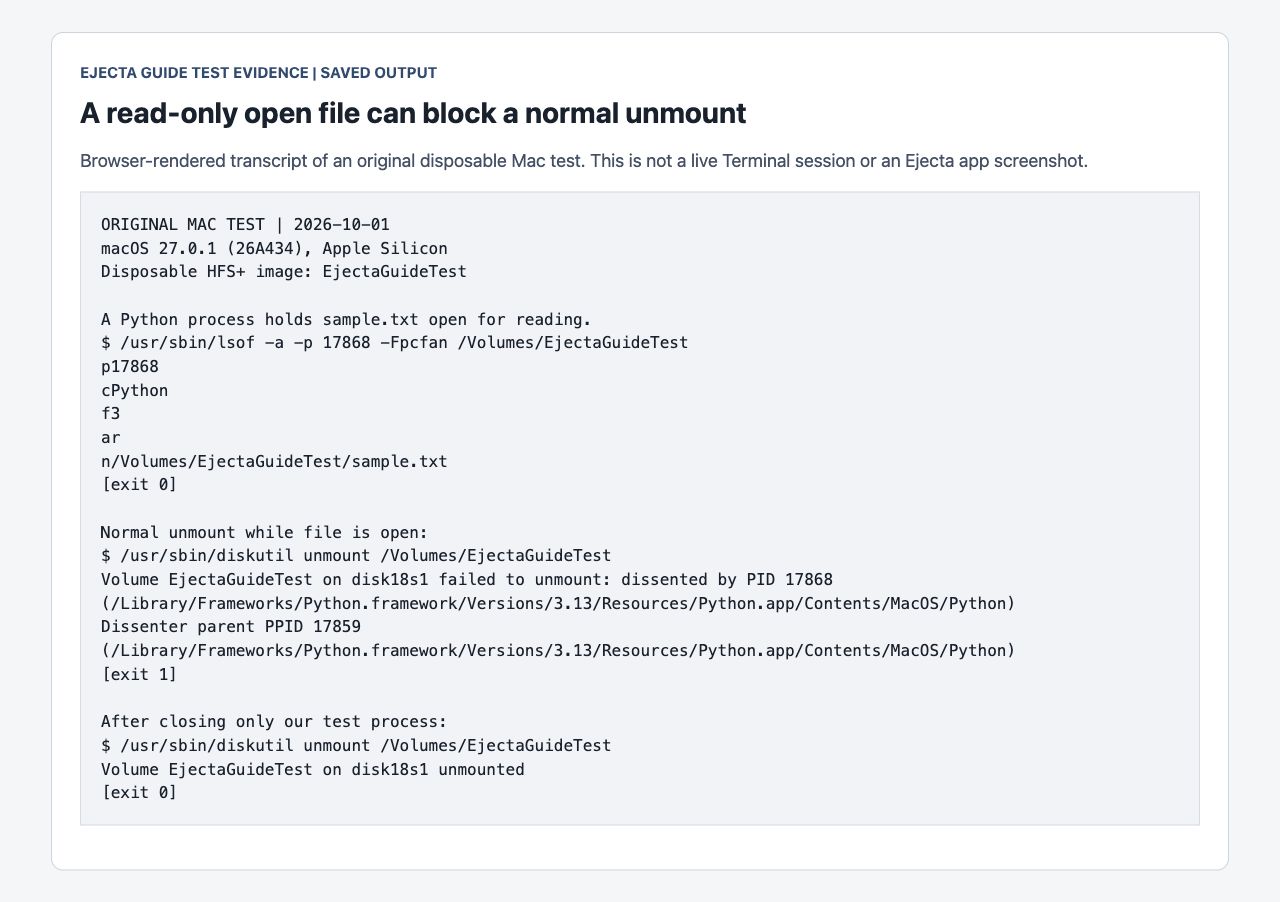
Test evidence: a browser screenshot of saved output from the original disposable Mac experiment. It is not an Ejecta app screenshot or a live Terminal session.
Reproduce the open-file observation with expendable data
Use a disposable disk image, never a working drive or backup. Create a blank HFS+ image in Disk Utility with a unique volume name, mount it, and put an expendable sample.txt file on it. Substitute that exact test path in the commands below. If you already have Python 3 installed, run this in one Terminal window:
python3 -c 'import os,sys,time; f=open(sys.argv[1],"r"); print("Test PID:",os.getpid(),flush=True); time.sleep(300)' "/Volumes/Your Unique Test Volume/sample.txt"
In another window, inspect the printed PID with lsof -a -p TEST_PID -Fpcfan "/Volumes/Your Unique Test Volume". Request a normal unmount of that same disposable volume with diskutil unmount "/Volumes/Your Unique Test Volume". Return to the first window and press Control-C to close your own test process, then retry the normal unmount. The lab observation may vary by filesystem, permissions and macOS version. Do not force eject to reproduce this test.
Where Ejecta helps
Ejecta’s free version shows detected processes holding external drives. The paid version adds quit and eject actions for supported apps, so you can do more from the menu bar. That saves navigation; it does not tell you whether an app has unsaved work or prove that a drive has no pending writes.
The current download is Ejecta 1.4.3, for macOS 13 or later, on Apple Silicon and Intel. The current one-time price is $9.99. The license has no computer or activation limit, with refund requests within 30 days. Download or review the purchase terms after trying the free diagnosis first.
Ejecta offers free drive diagnosis without a timed trial. The paid license unlocks quit and eject actions for supported apps, Eject All and Time Machine controls. System holders may require waiting, authorization or shutdown. Save work and finish transfers first.
Buy Now -Related articles
How to Find, Open, and Use an External Hard Drive on a Mac
Connect an external hard drive to your Mac, find it in Finder, open your files, and disconnect it safely. A …
How to Safely Eject a USB Drive From a Mac
Every way to eject a USB drive on a Mac, plus what to do when macOS says the disk is in use and won't let it …
External Drive Not Ejecting on Mac After Sleep
Mac waking from sleep and showing 'Disk Not Ejected Properly'? Here's why it happens and how to stop it for …
How to Eject an External Hard Drive on Mac
Four ways to eject an external hard drive on a Mac, plus what to try in order when macOS says a program is …