 Ejecta
Time Machine Won't Let You Eject? Check Backup Status First
Check Time Machine status, let backup work finish, and retry a normal eject. A backupd process name alone does not prove a backup is active or safe to interrupt.
When a Time Machine drive will not eject, first check whether a backup is running. A process named backupd in Activity Monitor or an open-file list is a clue, not a verdict. Save your work, finish other transfers and use Time Machine’s own controls before trying another normal eject.
Check Time Machine without changing anything
Open System Settings > General > Time Machine on recent macOS versions and inspect the backup status. The Time Machine menu, if enabled, also exposes its current status. Older macOS versions may use different labels.
For a read-only Terminal check, run:
tmutil status
This reports a snapshot of Time Machine’s backup session. A Running = 1 result indicates a running session at that moment. Running = 0 indicates no running session in that result. It does not rule out other disk activity, prove all open files have closed, or guarantee the next eject will succeed.
If a backup is active, waiting for it to finish is the first choice. If you need to stop it, use Time Machine’s own Stop This Backup control when available, then wait for the operation to stop and retry Finder’s normal eject. Apple documents Time Machine backup controls. A stop request is not proof of immediate completion. Stopping a backup can leave the current backup incomplete.
Do not unplug the drive during a backup, force quit backupd, or disable indexing as a routine eject fix. A backup should not become the expendable data in a troubleshooting experiment.
Our original Mac check was idle
On October 1, 2026, we ran the read-only command on macOS 27.0.1 (26A434), Apple Silicon. The recorded output was:
Backup session status:
{
    ClientID = "com.apple.backupd";
    Percent = "-1";
    Running = 0;
}
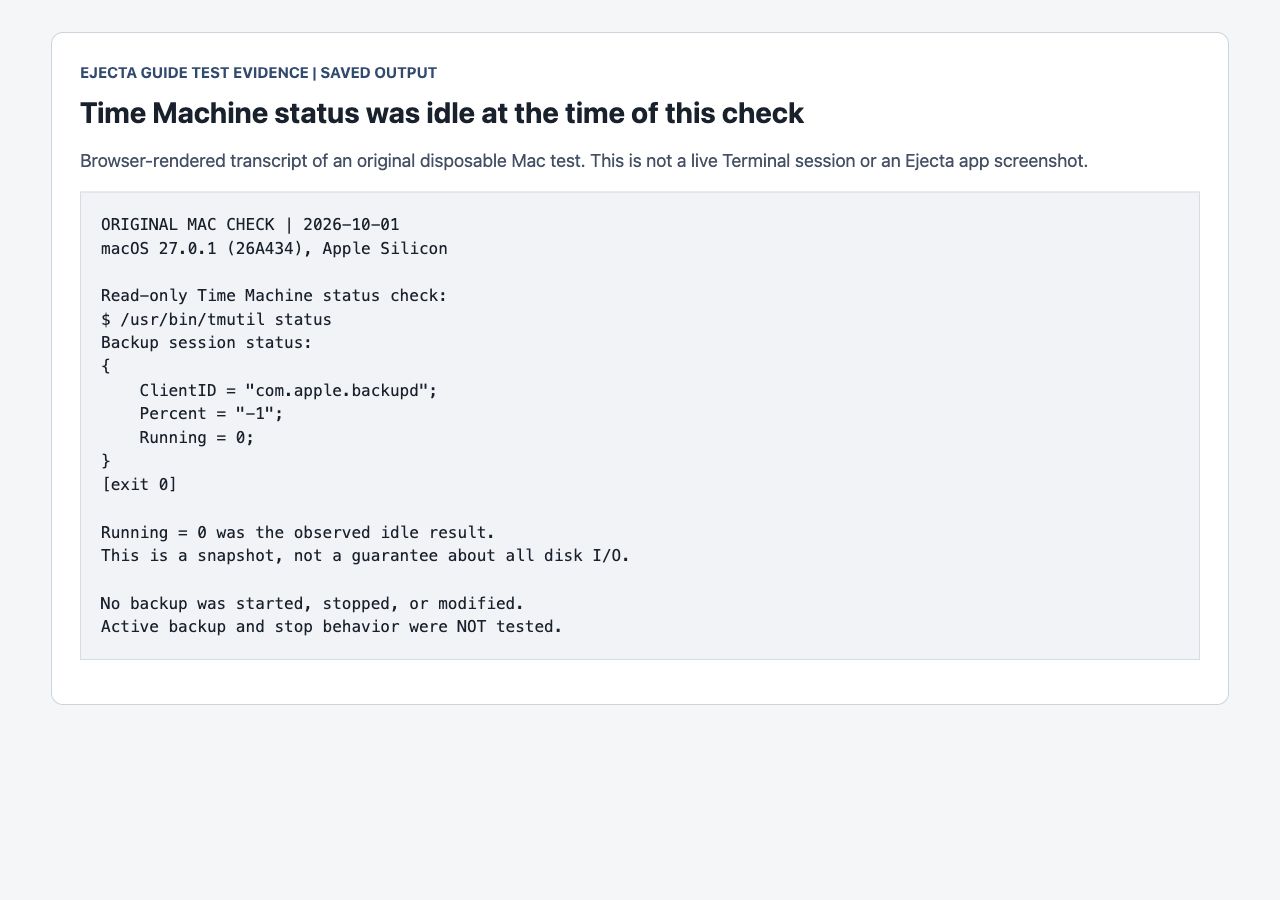
Test evidence: a browser screenshot of saved output from the original Mac check. It is not a live Terminal session or an Ejecta app screenshot. No backup was started, stopped or modified. We did not test an active backup or verify stop behavior.
You can reproduce this read-only check by running tmutil status on your own Mac and recording the result. Your result may differ with the backup state and macOS version. Do not start, interrupt or force eject a backup just to match this example.
If Time Machine is idle but the drive still will not eject
Try a normal Finder eject. If it fails, inspect the volume with the free open-file diagnosis. Another app, sync task or indexing process may have a file open. Apple’s backup-disk guidance recommends confirming the backup has stopped, closing Finder files and folders on the disk, and allowing indexing to finish. Finish its work and close it using its normal controls where possible.
In a separate disposable HFS+ image experiment, a Python process held an expendable file open for reading. A normal unmount failed until we closed that test process. This was not a Time Machine backup test. It shows why an idle Time Machine status alone cannot settle whether another process holds a volume.
A process name, file access flag or quiet-looking window cannot establish active-write safety. For persistent failures, a normal shutdown is an alternative: let the Mac shut down before disconnecting the drive. Read the force-eject risk guide before treating force eject as a shortcut.
Ejecta’s convenience and its limits
Ejecta’s free diagnosis can show detected processes holding a drive. Paid actions for supported apps are available from the menu bar. Its Time Machine handling can offer to wait or request a backup stop, then retry ejection. Those are actions to assist the workflow; a drive can still require attention.
This guide’s original test did not exercise Ejecta against an active backup. Ejecta does not certify that writes have finished, and force quitting an app can lose unsaved work.
Ejecta 1.4.3 requires macOS 13 or later and supports Apple Silicon and Intel. The current one-time purchase is $9.99, with no computer or activation limit and the existing 30-day refund-request terms. Try the free diagnosis first.
Ejecta offers free drive diagnosis without a timed trial. The paid license unlocks quit and eject actions for supported apps, Eject All and Time Machine controls. System holders may require waiting, authorization or shutdown. Save work and finish transfers first.
Buy Now -Related articles
How to Find, Open, and Use an External Hard Drive on a Mac
Connect an external hard drive to your Mac, find it in Finder, open your files, and disconnect it safely. A …
How to Safely Eject a USB Drive From a Mac
Every way to eject a USB drive on a Mac, plus what to do when macOS says the disk is in use and won't let it …
Why Your Mac Gets Slower When an External Drive Is Connected
Plugging in an external drive shouldn't slow down your whole system, but it often does. Here's what's …
Understanding macOS Disk Permissions and External Drives
Permission issues can prevent you from accessing, modifying, or ejecting external drives on Mac. Here's how …