 Ejecta
Finally eject your external drives
Ejecta shows detected processes holding your external drive and offers quit and eject actions for supported apps from the menu bar.
The free version names the exact process blocking your drive. Unlock one-click quit & eject for $9.99, one-time, lifetime license.
Requires macOS 13 Ventura or later
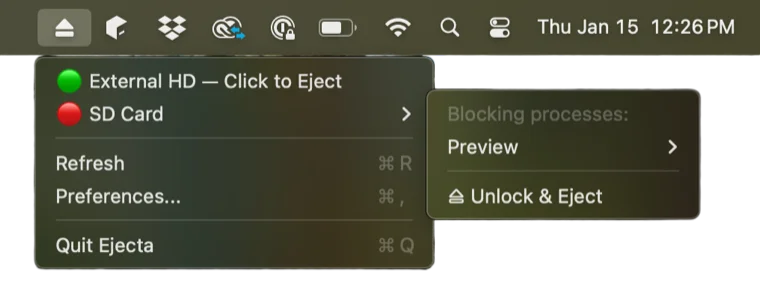
You've seen this before
macOS tells you something is using your drive, but never tells you what. So you close every app. Restart Finder. Wait. Pray. Eventually unplug the drive anyway and hope for the best.
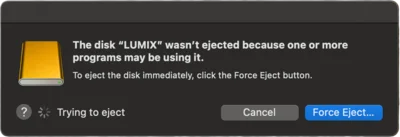
There's a better way.
How it works
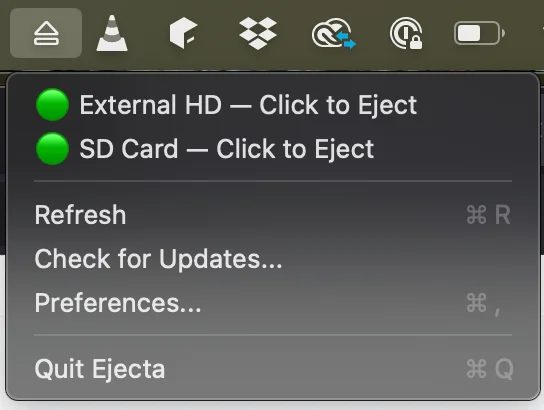
Click the Menu Bar Icon
See all your mounted external drives at a glance with status indicators.
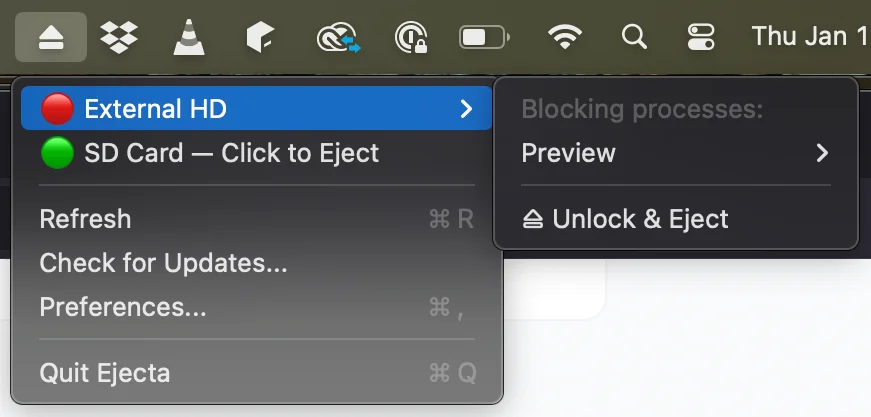
Spot the Blocker
Red indicator? Expand to see exactly which process is using your drive.
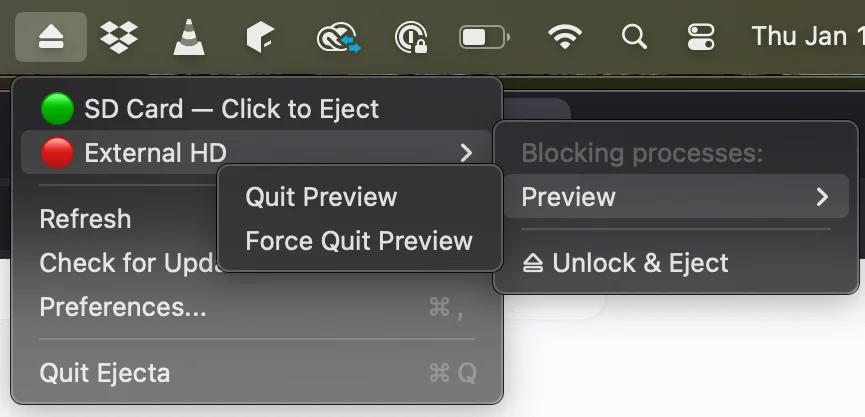
Quit and Eject
Save your work, finish transfers, quit a supported app, then try ejecting.
Features
Everything you need to safely eject your drives.
Eject All at Once
Request ejection of connected drives from the menu bar. Time Machine wait/stop options are available; some drives may still need attention.
Lives in Your Menu Bar
No dock icon, no main window. Ejecta stays out of your way until you need it.
Visual Status Indicators
Green means no blockers were found. Red means an open file was detected. Always save work and try a normal eject first.
Reveals Blocking Processes
See exactly which app or system process is holding onto your drive: Spotlight, QuickLook, Finder, or anything else.
One-Click Quit
Quit supported apps from the menu bar. System processes have separate handling and may require waiting or shutdown.
Force Quit Fallback
Force quit is a last resort. It can lose unsaved work or interrupt writes. Save first and let transfers finish.
Privacy First
File and process information stays on your Mac. Licensing and update checks contact online services. See the privacy policy.
Time Machine Aware
Offer to wait for Time Machine or request a backup stop, then retry ejection. A drive may still need attention.
Set It and Forget It
Launches quietly at login and updates itself automatically, so it's always ready the moment a drive won't eject.
Built for Mac users who work with external storage
Video Editors
Final Cut Pro, DaVinci Resolve, and Premiere all keep external drives locked long after you're done editing. Ejecta shows you which process to quit so you can safely unplug.
Photographers
Photos, Lightroom, and Capture One are notorious for holding SD cards and external drives hostage. Ejecta gets you out faster.
Developers
Time Machine, Spotlight indexing, and Xcode simulators all block drives without telling you. Ejecta names the culprit immediately.
Power Users
If you plug in drives regularly and rely on macOS to get out of your way, Ejecta replaces the guesswork with one clear answer.
one-time purchase
Simple pricing
One-time purchase. No subscriptions. Ever.
one-time purchase
- Lifetime license
- Free updates
- Email support
- Works on Apple Silicon & Intel
No computer or activation limit. Refund requests within 30 days.
Contact support within 30 days of purchase to request a full refund.
Requires macOS 13 Ventura or later. Full Disk Access permission required.
Frequently asked questions
Why can't I eject my external drive on Mac? ⌄
macOS blocks drive ejection when any process (an app, a background service like Spotlight, or a sync client like Dropbox) has an open file handle on the drive. The frustrating part is macOS doesn't tell you which process. Ejecta does.
What is Ejecta and how does it work? ⌄
Ejecta offers free drive diagnosis without a timed trial. The paid license unlocks quit and eject actions for supported apps, Eject All and Time Machine controls. System holders may require waiting, authorization or shutdown. Save work and finish transfers first.
Does Ejecta work on macOS Sequoia and Sonoma? ⌄
Yes. Ejecta requires macOS 13 Ventura or later and is fully compatible with macOS 15 Sequoia.
Is Ejecta safe? Will quitting a process cause data loss? ⌄
A process name or open-file list cannot prove that no writes are in progress. Save your work, finish copies and backups, and quit apps normally before retrying eject. Force quitting or force ejecting may lose data; Ejecta does not certify write safety.
What happened to What's Keeping Me? ⌄
What's Keeping Me was a popular utility for this problem, but it hasn't been updated for modern macOS and doesn't work reliably on Sonoma or Sequoia. Ejecta was built as its modern replacement.
From the Blog
View all →How to Find What Process Is Using a Drive on Mac
Use free Mac tools to inspect open files, identify a possible drive holder, and retry a normal eject. Learn what lsof …
Oct 1, 2026How to Eject an External Hard Drive on Mac
Four ways to eject an external hard drive on a Mac, plus what to try in order when macOS says a program is using the …
Oct 22, 2026Why Spotlight Blocks Disk Ejection on Mac (mds & mds_stores Fix)
Spotlight indexing (mds, mds_stores, mdworker) is one of the most common reasons a Mac external drive won't eject. Learn …
Oct 14, 2026Time Machine Won't Let You Eject? Check Backup Status First
Check Time Machine status, let backup work finish, and retry a normal eject. A backupd process name alone does not prove …
Oct 1, 2026Is Force Eject Safe on Mac? What You Can and Cannot Check
Force eject can interrupt writes and lose data. Learn why process names and lsof access flags cannot establish safety, …
Oct 1, 2026diskutil eject: How to Eject Drives From Mac Terminal
The exact Terminal commands to eject any Mac drive, force-unmount one that won't budge, and use lsof to find what's …
Oct 1, 2026exFAT vs NTFS on Mac: Which Format for Your External Drive
Choosing between exFAT and NTFS for your Mac external drive? Here's what each format actually means for read/write …
Oct 14, 2026APFS vs exFAT: Which to Use for a Mac External Drive
Use APFS if your external drive only touches Macs, exFAT if it ever touches Windows. How they differ on Time Machine, …
Oct 22, 2026How to Find, Open, and Use an External Hard Drive on a Mac
Connect an external hard drive to your Mac, find it in Finder, open your files, and disconnect it safely. A plain guide …
Oct 14, 2026Stop fighting with your Mac
See detected drive holders and request ejection from your menu bar.
Download Now